
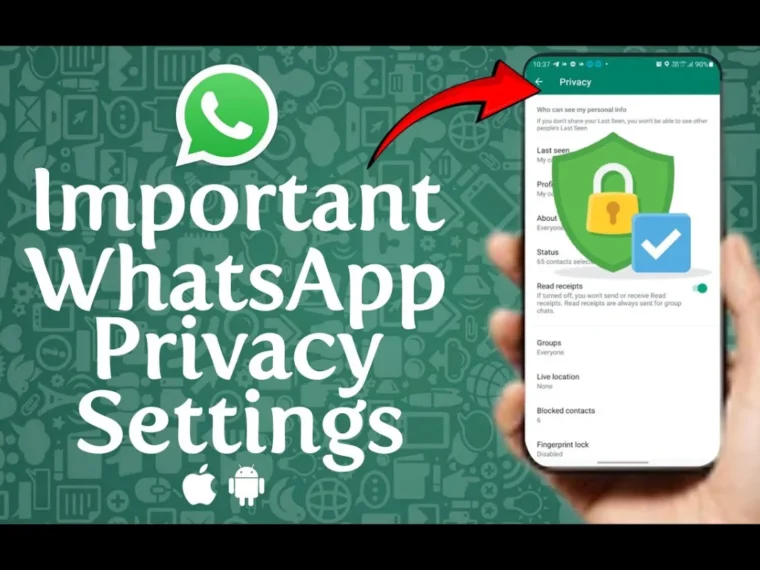
WhatsApp Privacy Settings: For a lot of people in India, WhatsApp is less an app and more a utility. It is where family photos arrive, where the school sends notices, where the plumber shares an estimate and where, increasingly, scammers try their luck. Most of us installed it years ago, accepted the default settings and never looked again.
That is a problem, because the defaults lean toward convenience. Out of the box, strangers can often see your profile photo, anyone can add you to a group, and an unknown number can ring your phone at midnight. The good news is that almost every fix takes less than a minute. Here are ten settings worth changing today, with the menu path for each.
A quick note before we start: WhatsApp updates its menus fairly often, so a label may look slightly different on your phone. If you cannot find something, search for it in the settings search bar.
1. Run the Privacy Checkup First
If you only do one thing, do this. WhatsApp has a guided tool that walks you through the main controls in one place.
Path: Settings → Privacy → Privacy Checkup (it appears at the top of the Privacy screen).
It covers four areas: who can contact you, what personal information you show, how private your chats are and how well your account is protected. Treat it as a map. The rest of this article explains what to choose along the way.
2. Turn On Two-Step Verification
This is the single most valuable security setting on the app. It adds a six-digit PIN that WhatsApp asks for whenever someone tries to register your number on a new phone. Without it, anyone who tricks you into sharing the SMS code could take over your account.
Path: Settings → Account → Two-step verification → Enable.
Choose a PIN you will remember but nobody else would guess. Avoid birthdays and phone-number endings. Add a recovery email so you can reset the PIN if you forget it, and make sure you have access to that inbox.
Never share your six-digit SMS code with anyone, even a friend asking in a hurry. If a contact messages you saying they “sent the code by mistake,” that is almost always an account-takeover attempt.
3. Check Your Linked Devices
WhatsApp lets you link your account to other phones, tablets and computers. Scammers sometimes trick people into scanning a QR code or entering a code that quietly links the scammer’s device, which gives them access to your messages.
Path: Settings → Linked devices.
Look through the list. If you see anything you do not recognise, tap it and log out. Make it a habit to check this every month or two, and never scan a QR code or enter a pairing code just because a message or call told you to.
Also read: UPI and Online Payment Scams During the Festive Season: How to Stay Safe
4. Limit Who Can Add You to Groups
Random group invitations are a classic gateway for spam, fake investment tips and phishing links.
Path: Settings → Privacy → Groups.
Choose My contacts or My contacts except… rather than Everyone. This means only people in your phonebook can add you directly, and others must send a private invite you can ignore.
5. Tighten Last Seen, Profile Photo and About
Your profile photo, last seen status and About text can be used by strangers to build a picture of you, or by scammers to impersonate you.
Path: Settings → Privacy, then tap Last seen and online, Profile photo and About.
A sensible setup for most people is My contacts for each. If you want to be more private, choose Nobody for last seen, and consider limiting your profile photo to contacts. Note that WhatsApp reciprocity applies: if you hide your last seen, you may not see others’ either.
6. Silence Unknown Callers
Spam and scam calls over WhatsApp have become common, often from foreign numbers. This setting stops them from ringing your phone while still letting you see them in your call list.
Path: Settings → Privacy → Calls → Silence unknown callers.
Calls from numbers not saved in your contacts will be silenced automatically. If you are expecting a call from a courier or a new client, check your Calls tab afterwards.
7. Block Unknown Account Messages
If you receive many unsolicited messages from numbers you do not know, there is an option to filter high volumes of messages from unfamiliar accounts.
Path: Settings → Privacy → Advanced → Block unknown account messages.
Depending on your app version, you may also see related options there, such as disabling link previews or protecting your IP address in calls. Newer versions have also introduced a stricter bundle of settings that locks down several of these at once. If your phone shows a Strict Account option in the same menu, it is worth reading what it does before enabling it, since it can block attachments and calls from unknown numbers.
8. Use App Lock and Chat Lock
If your phone is shared at home, or you worry about a lost phone, locking WhatsApp itself is a smart layer.
App lock: Settings → Privacy → App lock. This requires fingerprint, face unlock or your phone passcode to open WhatsApp.
Chat Lock: Open a chat, tap the contact or group name at the top, scroll down and tap Lock chat. Locked chats move to a separate protected folder and hide their notification previews.
This is helpful for conversations that contain banking details, medical reports or private photos.
9. Use Disappearing Messages and View Once Sensibly
Disappearing messages automatically delete after a set time, which limits how long sensitive information sits on a phone.
Path: Open a chat, tap the name at the top, and choose Disappearing messages. You can also set a default timer for all new chats under Settings → Privacy → Default message timer. Options usually include 24 hours, 7 days and 90 days.
For one-off sensitive items such as an OTP screenshot or an ID photo, use View once when sending. It is not foolproof, since someone can still photograph the screen with another device, but it reduces casual forwarding.
10. Encrypt Your Chat Backups
WhatsApp protects messages with end-to-end encryption while they travel. Backups stored in Google Drive or iCloud were historically a weak spot. You can now encrypt them with a password or a key.
Path: Settings → Chats → Chat backup → End-to-end encrypted backup → Turn on.
Write down the password or key and store it somewhere safe. If you lose it, WhatsApp cannot recover your backup for you.
Common WhatsApp Scams to Watch For
Settings help, but awareness matters just as much. These are the patterns that show up repeatedly in India:
- The “wrong code” trick. A contact, often a hacked account, asks you to forward a six-digit code they say was sent to you by mistake.
- Fake job and task offers. Messages promise easy income for liking videos or completing small tasks, then ask for a deposit.
- Impersonation of family members. “Hi Mum, this is my new number” followed by a request for urgent money. Always call the person on their old number.
- Fake delivery or KYC links. Messages say a parcel is held or your bank account will be blocked, with a link to a lookalike site.
- APK files. Anything that arrives as an app file in a chat, often disguised as a festival greeting or a government scheme, should not be installed.
- Investment groups. Strangers add you to groups with “experts” and screenshots of big profits. These are usually pump-and-dump schemes.
If something feels off, pause, verify through a separate channel and do not click.
What to Do If Your Account Is Hacked
- Reinstall WhatsApp and register your number again with the SMS code. This logs the other person out.
- Turn on two-step verification straight away.
- Check Linked devices and remove unknown ones.
- Warn your contacts, since the hacker may have messaged them for money.
- If financial loss is involved, report it to your bank immediately and call the national cyber crime helpline on 1930, or file a complaint at cybercrime.gov.in.
A Five-Minute Routine
You can lock down most of this in one sitting:
- Open Privacy Checkup and go through each section.
- Enable two-step verification with a recovery email.
- Set Groups to My contacts.
- Turn on Silence unknown callers.
- Review Linked devices.
Put a reminder in your calendar to repeat the review every quarter.
Help the Family Too
The people most likely to fall for WhatsApp scams are often parents and grandparents who are comfortable with the app but less familiar with its risks. Sit down with them, set up two-step verification, switch group invitations to contacts only, and explain the “wrong code” and “new number” tricks. Ten minutes of patient help is worth far more than a forwarded warning.
WhatsApp is secure at the core, thanks to end-to-end encryption, but the settings around it decide how exposed you are. Turn on two-step verification, check your linked devices, restrict group invitations, silence unknown callers and lock the app. None of it takes long, and together these steps close the doors scammers use most often. Do it today, then pass it on to someone you care about.