
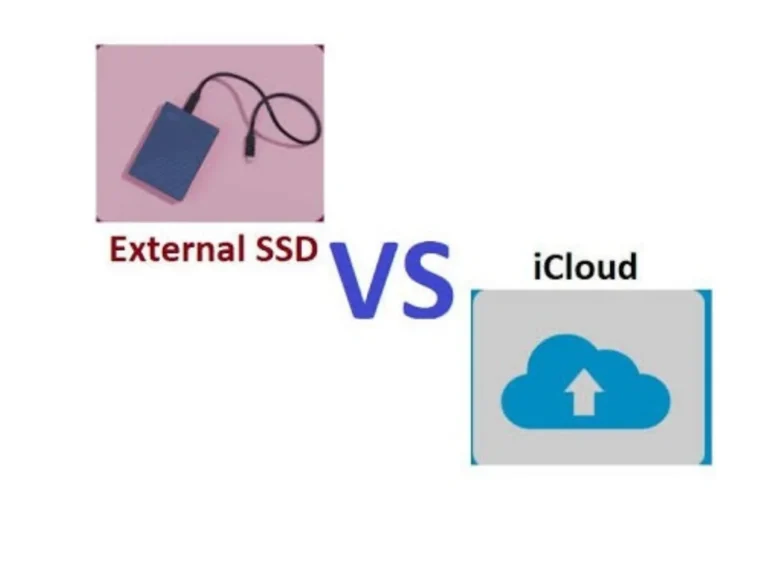
Photos, videos, documents and project files can accumulate quickly. A phone may hold years of family pictures, a laptop may contain important work, and a creative project can require many gigabytes of storage. Eventually, the question becomes unavoidable: should you pay for cloud storage, buy an external solid-state drive, or use both?
Cloud storage and external SSDs solve similar problems in different ways. Cloud services store your files on remote infrastructure that you access through the internet. An external SSD is a physical storage device that connects to your computer or another compatible device.
Neither option is automatically best for everyone. The right choice depends on how often you access your files, the size of your collection, the reliability of your internet connection and how much you value convenience compared with direct control.
What Is Cloud Storage?
Cloud storage lets you upload files to a service provider’s online servers. After uploading, you can usually access those files through a browser, desktop application or mobile app. Depending on the service and settings, files may also synchronise automatically across multiple devices.
This can be convenient for people who regularly switch between a phone, tablet and computer. A document saved on one device may become available on another without needing to connect a cable or carry a storage device.
Cloud services can also make sharing easier. You may be able to send a link to a folder, collaborate on documents or restore an earlier version of a file. These features depend on the provider, subscription and account settings.
However, cloud storage relies on an internet connection for many tasks. Uploading a large video collection may take a long time on a slow connection, and downloading files can consume mobile data. Some services offer offline access, but this must be configured and does not eliminate the need to upload files initially.
What Is an External SSD?
An external solid-state drive, or SSD, is a portable storage device that uses flash memory rather than the spinning disks found in traditional hard drives. It connects through a suitable interface, commonly USB-C or USB-A, depending on the device.
External SSDs are popular for transferring large files, editing video projects and keeping local copies of important documents. Once files are stored on the drive, you generally do not need an internet connection to access them.
Their performance depends on several factors, including the SSD itself, its connection standard, the computer’s ports and the type of files being transferred. A fast drive connected to a slower port may not reach its advertised maximum speed.
Unlike a cloud subscription, an SSD is usually purchased upfront. You can continue using it without paying a recurring storage fee, although the drive may eventually need replacement and should not be treated as a permanent, failure-proof archive.
Also read: AI Trip Planners vs Local Tips: How to Plan Travel Smarter
Speed: Which Option Is Faster?
For transferring large files locally, an external SSD is often the more practical choice. Once connected, it can provide fast access without waiting for an upload or download. This is especially useful for photographers, video editors and anyone working with large media libraries.
Cloud storage speed depends heavily on your internet connection and the provider’s infrastructure. A fast broadband connection can make everyday syncing feel almost instant, but uploading hundreds of gigabytes may still take considerable time.
The difference becomes clear when working away from home. If you need to access a file that is already on your SSD, the transfer may be quick, provided the device is compatible. If the file exists only in the cloud, you may need a reliable connection before you can download it.
For small documents and routine sharing, cloud storage can feel faster in practical terms because you do not have to locate and connect a physical drive.
Cost: One-Time Purchase or Recurring Subscription?
An external SSD generally involves a one-time purchase. The price varies according to capacity, performance, durability and brand. Once purchased, it does not require a monthly storage subscription, although you may eventually buy another drive as your needs grow.
Cloud storage often offers a free tier with limited space and paid plans for larger collections. Subscription fees may look small at first, but they continue for as long as you need the service. Over several years, the total cost can become significant.
The comparison is not as simple as dividing the SSD price by a monthly fee. Cloud subscriptions may include automatic syncing, sharing, collaboration and other features. A physical drive requires you to manage backups and may not provide remote access when you need it.
Before choosing, estimate how much storage you actually use. Compare the total cost over two or three years, including whether you would need multiple physical drives for safe backups.
Security and Privacy
Cloud storage places responsibility for part of your data protection with the service provider. Reputable services may offer encryption, account security controls and options such as two-factor authentication. However, you still need to protect your login credentials, review sharing permissions and understand the provider’s privacy terms.
A compromised account can expose files, particularly if links are public or access permissions are too broad. Use a strong, unique password and enable additional account protection where available.
An external SSD gives you more direct physical control over stored files, but that does not automatically make it safer. A lost or stolen drive may expose its contents unless appropriate encryption or device-level protection is used. A drive can also be damaged, corrupted or infected by malware when connected to an affected computer.
For sensitive documents, consider encrypted storage and keep recovery information somewhere safe. No storage method removes the need for sensible security practices.
Backup and Reliability
One of the biggest mistakes people make is assuming that storing a file in one place is the same as backing it up.
Cloud synchronisation can protect against some device failures, but accidental deletion or unwanted changes may synchronise across devices. Some services provide version history or a recovery period, though the details vary.
An external SSD gives you a separate local copy, but it can fail, be misplaced or be damaged. Keeping the only copy of important files on one portable drive is risky.
A stronger approach is to maintain more than one copy of important data. For example, keep working files on your computer, use an external drive for a separate backup and store a second copy in the cloud or another physically separate location. The appropriate arrangement depends on how valuable the data is and how quickly you would need to recover it.
Portability and Everyday Convenience
Cloud storage is useful when you need access across different locations and devices. You can retrieve a document while travelling, share photographs with family or collaborate with colleagues without carrying a drive.
An external SSD is ideal when you want a physical collection that travels with you. It can be particularly useful for large video files, offline projects and locations with unreliable connectivity. However, you must remember to bring it and protect it from loss or physical damage.
If you work mainly from one computer and deal with large files, an SSD may fit your routine well. If you frequently move between devices or collaborate online, cloud storage may save time.
Which One Should You Choose?
Choose cloud storage if you value automatic syncing, remote access and easy sharing. It is well suited to documents, selected photographs and files you need on multiple devices. Review the storage limit and recurring cost before committing to a paid plan.
Choose an external SSD if you frequently move large files, work offline or want a local storage device without an ongoing subscription. Check compatibility with your computer, phone or tablet before purchasing, and avoid choosing a drive based on advertised speed alone.
For many people, the best solution is a combination. Use cloud storage for everyday documents and files that need to be accessible anywhere, while keeping an external SSD for large projects and local backups. This approach provides flexibility without depending entirely on one method.
Cloud storage offers convenience, remote access and sharing, while external SSDs provide fast local access and straightforward portable storage. Their strengths overlap, but neither replaces a thoughtful backup plan.
Consider your internet connection, file sizes, privacy needs and long-term costs before deciding. Most importantly, keep multiple copies of files you cannot afford to lose. The best storage setup is not necessarily the most expensive one; it is the one you can maintain consistently and trust when you need your files.